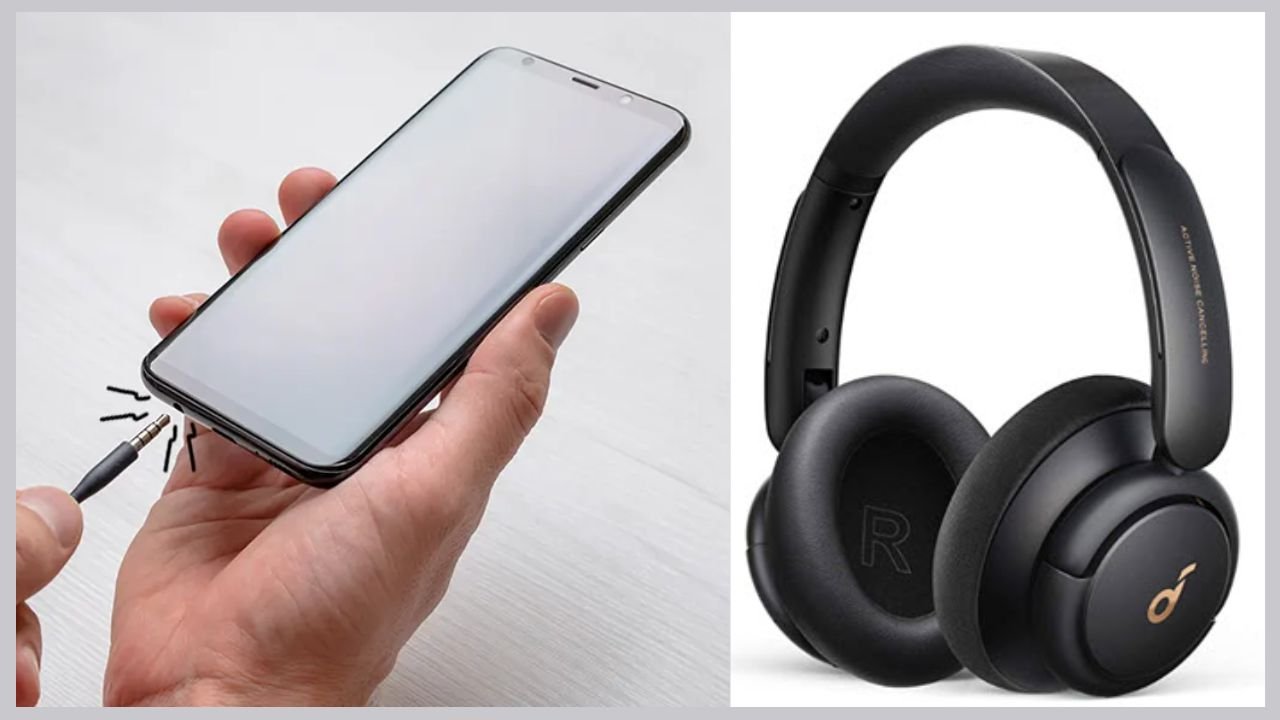
Headphones not connecting can be really frustrating especially when you just want to enjoy music, watch a video, or take an important call. Many people face this issue daily and it often happens at the worst possible time. The good news is that in most cases, the problem is not serious and does not mean your headphones are damaged. Small issues like Bluetooth errors, low battery, or simple setting mistakes are usually the real reason behind the trouble.
In many situations, headphones fail to connect because they are not in pairing mode or are already connected to another device nearby. Sometimes your phone, laptop, or tablet may still remember an old connection and refuse to pair again. Restarting both the device and the headphones, turning Bluetooth off and on, or removing the saved device from settings can solve the issue quickly. These small steps are easy to try and work instantly.
Another common reason is battery or software-related problems. Wireless headphones with low battery may turn on but fail to connect properly, while outdated system software can also cause connection errors. Charging your headphones fully and keeping your device updated can prevent these issues in the future. Once you understand these basic causes, fixing headphone connection problems becomes much easier and far less stressful.
Let’s break it down in a friendly and easy way so you understand why your headphones are not connecting and how you can fix them properly.
1. Bluetooth Is Turned Off or Not Pairing Properly
One of the most common reasons is that Bluetooth is not enabled or your headphones are not in pairing mode.
How to Fix It:
- Turn Bluetooth OFF, wait 10 seconds, then turn it ON again
- Put your headphones into pairing mode (usually by holding the power button)
- Go to Bluetooth settings and select your headphones from the list
- If already connected before, tap “Forget Device” and reconnect
💡 Tip: Keep headphones close to your phone while pairing.
2. Headphones Are Connected to Another Device
Your headphones may still be connected to a laptop, tablet, or another phone.
How to Fix It:
- Turn off Bluetooth on other nearby devices
- Restart your headphones
- Try pairing again with your main device
3. Low Battery in Headphones
If your headphones have low or dead battery, they may not connect at all.
How to Fix It:
- Fully charge your headphones (at least 30–60 minutes)
- Check if the indicator light turns on
- Try connecting again after charging
Many Bluetooth issues are simply battery-related.
4. Software or System Glitch
Sometimes the issue is not your headphones, it’s your phone or laptop software.
How to Fix It:
- Restart your device
- Update your phone’s operating system
- Reset network settings (if problem continues)
5. Wired Headphones Not Working? Check the Jack or Cable
If you’re using wired headphones, the problem could be physical.
Common Reasons:
- Dust or lint in the headphone jack
- Loose or broken wire
- Damaged headphone plug
How to Fix It:
- Clean the headphone jack gently with a toothpick or soft brush
- Try headphones on another device
- If they don’t work anywhere, the cable may be damaged
6. Audio Output Is Set to the Wrong Device
Sometimes headphones are connected, but sound still comes from the speaker.
How to Fix It:
- Check volume and audio output settings
- Select headphones as the default audio device
- Disconnect and reconnect once
7. Headphones Need a Reset
Many Bluetooth headphones have a reset option that fixes connection issues.
How to Fix It:
- Press and hold the power + volume button (varies by model)
- Look for blinking red/blue light
- Pair again like a new device
Quick Checklist to Fix Headphones Not Connecting
- Bluetooth turned ON
- Headphones fully charged
- Not connected to another device
- Device restarted
- Headphones reset
- Jack and cable checked (for wired)
Headphones not connecting is a very common problem and most of the time it doesn’t mean your headphones are broken. With a few simple checks Bluetooth, battery, pairing, or cleaning, you can fix the issue in minutes.
🎧 Pro Tip: Always keep your headphones updated and charged for a smooth experience.